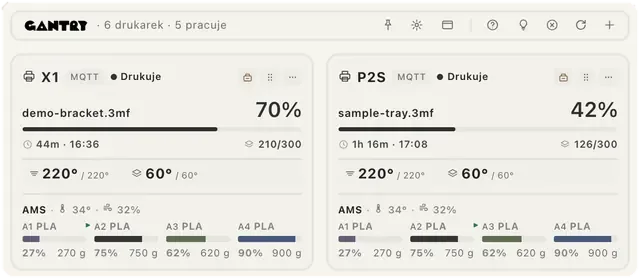
The menu bar shows progress all the time
The percentage of the current print stays in the menu bar. When you want more, you open the panel for a moment, click away and get back to work.
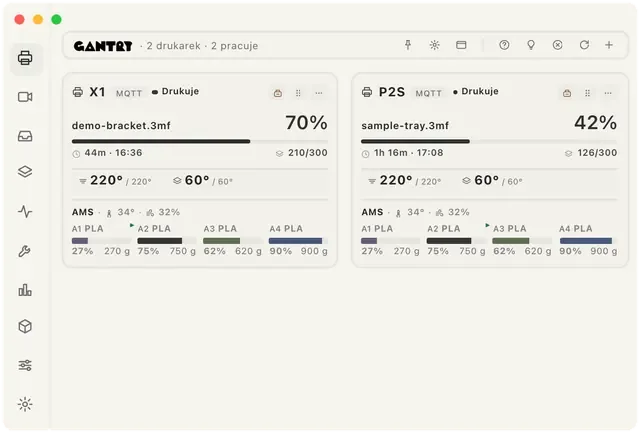
The fleet window holds every printer at once
This separate window fits your screen and your number of printers. It shows all the cards at once, with temperatures and AMS.
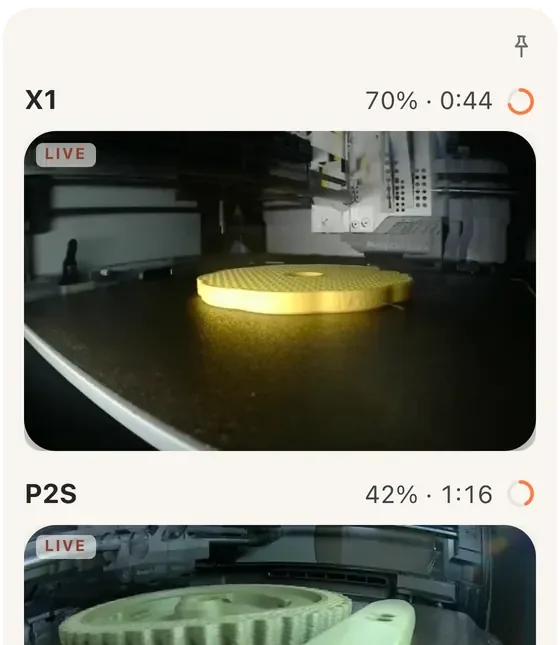
The side panel keeps cameras next to your slicer
Cameras and print progress sit at the edge of the screen, beside your slicer project. Pin it and the panel stays open.
Frequently asked questions
How do I turn on the side panel with cameras?
In the window and menu bar settings, turn on the edge panel, choose a monitor and a side of the screen, then pin it. Camera availability depends on the printer.
Does Gantry work on Windows and Linux?
Yes. The app is available for macOS, Windows and Linux, and it is free to download.

Download Gantry for free
The app runs on macOS, Windows and Linux, with no Gantry account and open source code.